Whether you’ve picked up an SEO beginner guide PDF or landed here after falling down a Google rabbit hole, the good news is this: most technical search engine optimization (SEO) problems are fixable. And most don’t require a developer.
Technical SEO is the foundation your content sits on. When something breaks on the technical side, Google has a harder time crawling, reading, and ranking your pages. That’s true even when your content is solid, and your keyword strategy is sound. A site can be doing everything right on the surface and still lose ground in search results because of something invisible to the naked eye.
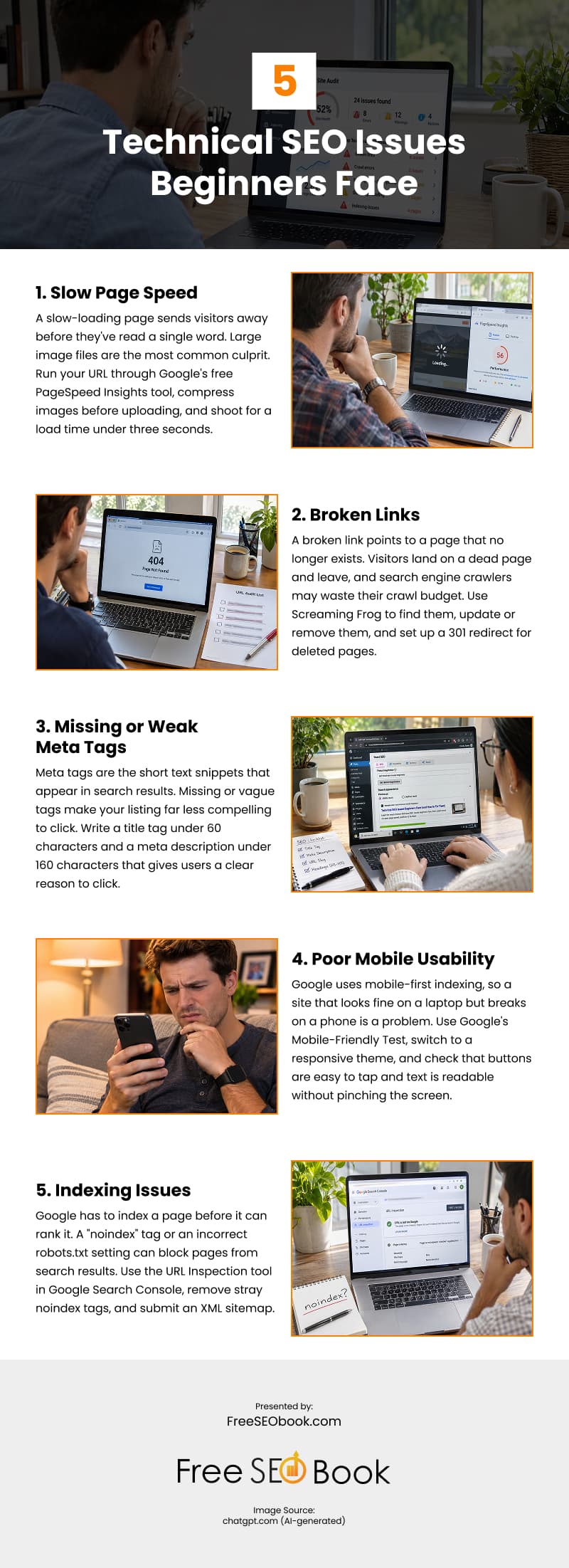
Here are five of the most common technical SEO issues beginners run into and what to do about each one:
1. Slow Page Speed
Page speed is one of the signals Google uses to rank pages, and users vote with their exits. A slow-loading page sends visitors away before they’ve read a single word, and that behavior signals to Google that the page isn’t worth ranking higher.
Large image files are the most common culprit. A photo uploaded directly from a smartphone or camera can easily be three to five megabytes, which is far too large for the web. Unoptimized code, too many plugins, and shared hosting plans add to the problem.
Run your URL through Google’s free PageSpeed Insights tool. It scores your page on both mobile and desktop and gives you a prioritized list of what to fix.
Start with images. Compress them before uploading using a free tool like Squoosh or TinyPNG. For WordPress sites, a caching plugin like WP Super Cache or W3 Total Cache can significantly improve load times without touching any code. These plugins store a saved version of your pages so browsers load them faster on repeat visits.
Shoot for a load time under three seconds. Load times beyond that threshold cause sharp drop-offs in visitor retention, and slower pages rarely hold their rankings over time.
2. Broken Links
A broken link is a link on your site that points to a page that no longer exists (a “404 Not Found” error). These hurt your site in two ways. Visitors land on a dead page and leave immediately. Search engine crawlers follow the same broken trail and may stop indexing your content or waste their crawl budget on pages that serve no purpose.
Pages get deleted, URLs change after a redesign, and external sources go offline without warning. Broken links accumulate on every site over time, and most site owners don’t realize how many they have until they run an audit.
Use Screaming Frog (free up to 500 URLs) or Google Search Console’s “Coverage” report to find them. For internal broken links (links within your own site), update the URL to point to the correct, live page. For external broken links, remove them or replace them with working sources.
For pages you deleted that previously had traffic or backlinks, set up a 301 redirect. A 301 redirect tells Google and visitors to go to a new address instead of the old one. Without a redirect, any authority or traffic those pages had built up disappears entirely.
3. Missing or Weak Meta Tags
Meta tags are the short text snippets that appear in search results. The two that matter most are the title tag and the meta description.
The title tag is the blue clickable headline in search results. The meta description is the brief summary beneath it. Together, they’re often the first thing a potential visitor sees from your site. Missing or vague meta tags make it harder for Google to understand what your page is about, and they make your listing far less compelling to click.
Many beginners build out pages and never touch the meta tags. Some website builders skip them entirely by default.
An SEO plugin like Yoast or Rank Math (both free for WordPress) shows which pages are missing title tags and meta descriptions. Google Search Console also flags these gaps in its “Coverage” report.
Write a title tag that includes your main keyword and stays under 60 characters. Write a meta description that summarizes the page in one to two sentences (under 160 characters) and gives users a clear reason to click. Don’t force keywords where they don’t fit naturally. A title that reads well to a human will nearly always outperform one that’s been contorted around a keyword.
4. Poor Mobile Usability
Google uses mobile-first indexing, which means it evaluates and ranks the mobile version of your site before the desktop version. A site that looks fine on a laptop but breaks on a phone is a problem, even for visitors who ultimately find you on a desktop.
Older website themes weren’t built with mobile in mind. Some custom designs were coded for desktop only and never tested at smaller screen sizes. The result is overlapping text, buttons too small to tap, images that overflow their containers, and menus that collapse in unusable ways.
Google’s free Mobile-Friendly Test tool lets you enter any URL and see whether it passes. You can also open Chrome on your desktop, right-click anywhere on the page, select “Inspect,” and use the device toolbar to preview your site at different screen sizes.
Switch to a responsive theme or template. A responsive design automatically adjusts your layout based on the device viewing it. Most modern themes handle this by default. On WordPress, switching themes is a one-click change. Review your content afterward to make sure the layout transferred cleanly.
Pay attention to three things:
- Buttons that are easy to tap without zooming
- Text that is readable without pinching the screen
- Images that stay within their containers
5. Indexing Issues
Google has to index a page before it can rank it. Pages that aren’t in Google’s index don’t show up in search results, no matter how good the content is or how well-structured the page may be.
A “noindex” tag is a common culprit. This tag tells Google to exclude a page from its index. During website development, it’s common practice to block search engines from indexing a staging or test version of the site. When the live site launches, that “noindex” setting sometimes carries over by accident.
Your robots.txt file is another frequent issue. Found at yourdomain.com/robots.txt, this file tells search engine crawlers what they can and can’t access. An incorrect setting here can accidentally block Google from crawling entire sections of your site.
In Google Search Console, use the URL Inspection tool to check whether a specific page is indexed. The “Coverage” report shows all pages Google hasn’t been able to access and explains why.
Two fixes cover most indexing problems:
- Remove “noindex” tags from any pages you want Google to rank. Check your SEO plugin settings or view the page’s HTML source directly.
- Review your robots.txt file and confirm you aren’t blocking crawlers from important directories or pages.
Submit an XML sitemap in Google Search Console to give Google a complete map of your site and help it find and index new pages faster.
Start with the Biggest Block First
Technical SEO looks overwhelming when you open an audit report and see a long list of flagged issues. The right move isn’t to try fixing everything at once. Start with whatever is hurting you most right now. Pages that Google can’t find are the first priority. A site that’s too slow to retain visitors is a close second.
Work through the list one issue at a time. Each fix removes one more obstacle between your content and the rankings it deserves. Most of these repairs are within reach for any site owner willing to spend a few hours in the right tools.
Need help understanding some of the technical SEO concepts? Read the beginner breakdown here or grab a free copy of one of the best SEO guides for beginners. It will go beyond the basics and help you understand how SEO works from the ground up. It is a practical guide written for business owners, not developers.
Infographic